The Show Day 2 Tech Checklist
How to keep booth AV stable when things get weird
What You’re Looking At
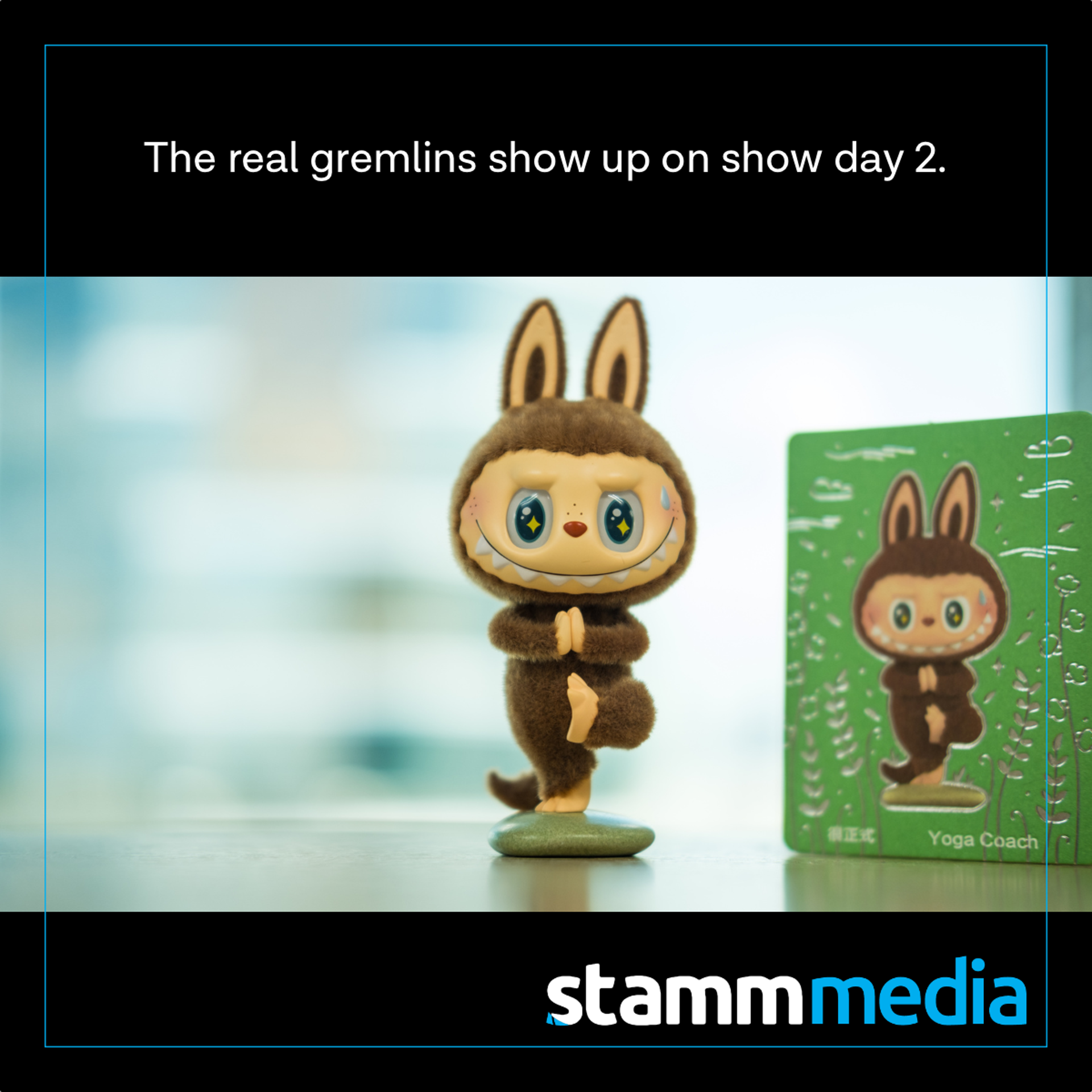
Trade show “Day 2” is where the gremlins live.
Day 1 is all adrenaline and fresh setups. Day 2 is when the booth is fully in motion: people are tired, content gets swapped, someone plugs in a “quick” laptop, and the reveal you rehearsed suddenly looks… different.
The good news: most Day-2 problems aren’t mysterious. They’re predictable edge cases that show up when a live environment meets real humans.
This post is your copy/paste-ready Day-2 stability checklist, built for booth teams that want the tech to feel invisible so they can focus on the conversations that matter.
When paired with…
These pairings make the checklist even more effective:
- A “single source of truth” content folder (final files only, with naming rules)
- A simple run-of-show and cue sheet (even if it’s just a one-pager)
- One tech owner and one backup (clear roles, clear escalation)
- A 10-minute morning tech check before doors open
- A pre-approved “Plan B” for video/audio/input failures (no panic decisions on the floor)
Why It Matters
Booth tech doesn’t usually “break.” It drifts.
- A screen looks dimmer because settings changed or the environment changed.
- Audio feels off because a source changed, or a laptop got swapped.
- Content gets cropped because someone exported at the wrong resolution.
- An input disappears because a cable got bumped, a converter failed, or a device went to sleep.
Day 2 is where you win credibility: not by avoiding issues entirely, but by handling them calmly, fast, and consistently.
The Day 2 Stability Checklist (Copy/Paste)
1) Morning “Doors Open” Tech Check (10 minutes)
Do this every day. Same order. Same person owns it.
- Confirm all screens are on and showing the expected content
- Verify brightness / color looks consistent (compare to a reference clip)
- Check audio level and clarity (quick voice + music test)
- Confirm inputs (laptop, media player, live feed) are visible
- Tap-test interactive elements (touch, sensors, buttons, controllers)
- Run the “hero moment” once (reveal clip / demo / timed sequence)
Pro move: keep a 20-second “reference video” you always use to sanity-check color, motion, and brightness.
2) Reboot Plan (Don’t freestyle it)
When something’s weird, don’t start unplugging random things. Have a reboot order.
- Identify what’s safe to reboot during show hours
- Decide reboot order (typical):
- Source device (laptop/media player)
- Switcher/controller (if used)
- Processor/receiver
- Display panels/screens (last resort)
- Document what “normal” looks like after reboot (so you know it worked)
Pro move: label power and signal chains so anyone can follow the reboot plan without guessing.
3) Content Control Rules (This prevents 70% of chaos)
Most Day-2 disasters happen after a “quick file change.”
- One folder called: FINAL - SHOW FLOOR
- One naming format (example): Brand_Moment_1080x1920_v03.mp4
- No loading files from email/text messages on the floor
- Confirm export specs before swapping content:
- resolution
- orientation
- codec/container
- audio on/off
- Keep yesterday’s version in an ARCHIVE folder (not mixed with finals)
Pro move: decide who is allowed to approve swaps (one owner & one backup).
4) The Spare Kit (Small things, massive saves)
This kit pays for itself in one saved moment:
- HDMI/USB-C/DP adapters (and at least one “weird” one)
- Short and long cables (HDMI, USB, power)
- A reliable USB-C hub
- Gaff tape, Velcro, zip ties, labels
- Power strip, extension, spare batteries
- Basic cleaning cloth (smudges look like “tech problems” on cameras)
Pro move: keep the kit in the same place every day. Don’t let it “walk.”
5) One Owner, One Backup (Role clarity means calm)
When everyone owns the tech, nobody owns the tech.
- Decide: who touches playback, who touches audio, who touches lighting
- Decide: who speaks to the client/team when something changes
- Decide: who makes the call on “Plan B” if needed
- Decide: what’s the escalation path (and what’s “don’t bother them”)
Pro move: give the booth team one sentence to use when tech is being handled:
“We’re on it, give us two minutes to stabilize playback.”
6) The “If X fails, do Y” Plan (Your pressure-release valve)
Have these answers ready before the floor gets busy:
- If the content won’t load, play backup loop
- If the laptop won’t output, switch to media player backup
- If an interactive fails, switch to static/demo mode
- If audio gets unstable, default to no-audio loop (clean visuals)
- If a panel/screen acts up, isolate, reduce complexity, keep the core moment intact
Pro move: the best Plan B is one the team can execute without a meeting.
Common Day-2 Problems and Fast Fixes
“Why does it look dimmer today?”
- Lighting changed, automatic settings changed, or someone adjusted brightness.
Fix: compare to your reference clip, confirm brightness settings, confirm source output hasn’t changed.
“We swapped a file and now it’s cropped/weird”
- Wrong resolution/orientation/export settings.
Fix: revert to previous known-good version, then re-export properly.
“The link/input worked yesterday… now it doesn’t”
- Cable bumped, adapter failed, laptop asleep, handshake issue.
Fix: follow reboot order. Swap the adapter/cable before tearing down anything major.
“Audio sounds different”
- Source changed, output device changed, levels reset.
Fix: test with a known audio clip, confirm output device, lock the level.
Use Cases
This checklist is especially helpful when you’re running:
- LED walls, LED features, or multi-screen content zones
- Timed reveal moments (content, lighting, audio)
- Interactive demos (touch, sensors, controllers, kiosks)
- Daily content updates (product drops, new visuals, new messaging)
- Live inputs (presentations, streams, camera feeds)
Want This in Your Next Show?
If you’ve got a booth moment that needs to land cleanly—we’ll help you stick the landing.
We’ll run a quick Show-Tech Game Plan and send back:
- what changed (or what might change)
- what we’d set or standardize
- what users/attendees will see
- the simplest Plan B so the show stays smooth